
Start with the source
Choose a saved video as your background. Video backgrounds are available to all ClipDuet users.
Choose an intentional frame
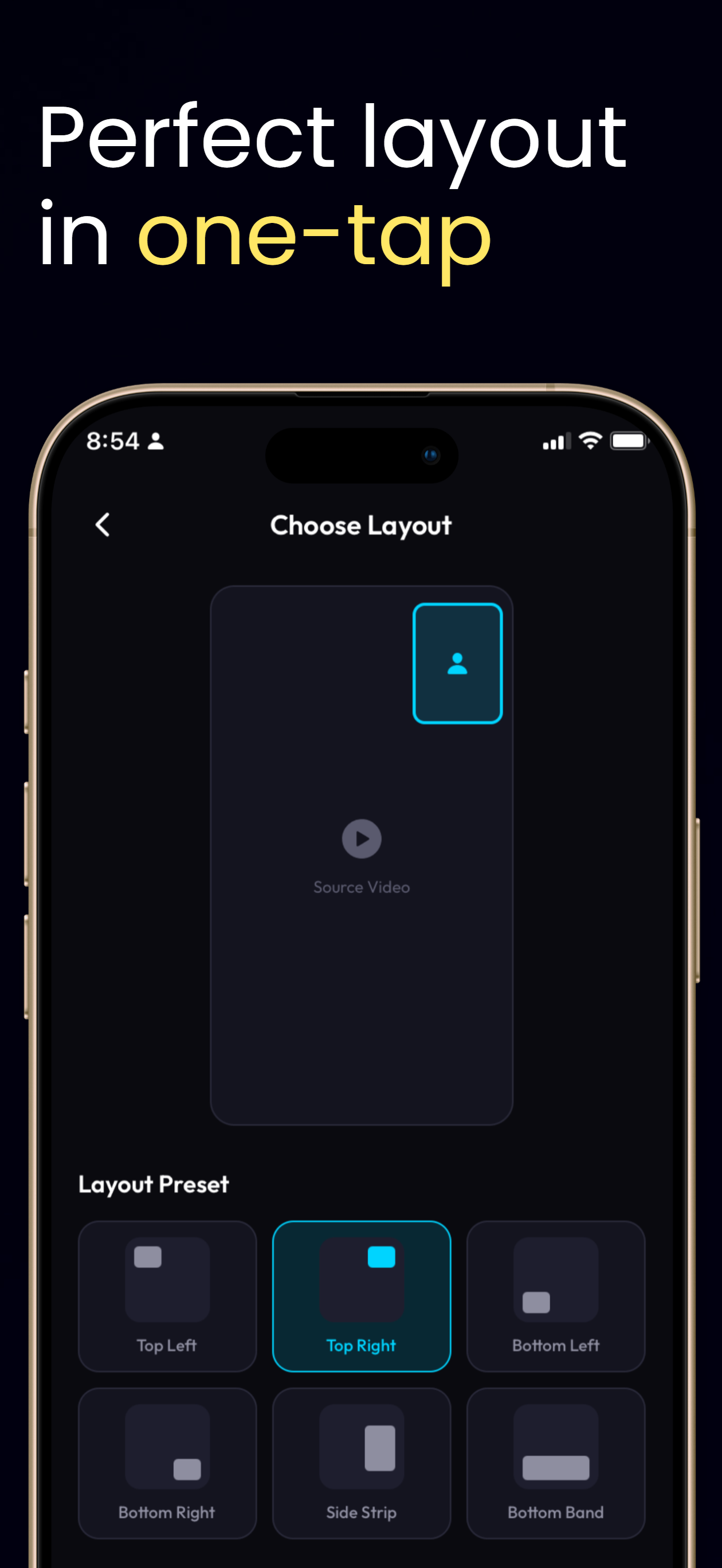
ClipDuet offers corner placements plus side-strip and bottom-band layouts. Small, medium, and large facecam sizes let you decide whether the reaction is a note or the main event.
Preview before the take
Use the preview to see the vertical composition and drag your camera bubble into position. Fit, Fill, and Focus change how the background sits in the tall frame.
Match the layout to the conversation
Corner presets keep the source dominant, while Side Strip and Bottom Band make the reaction more prominent. Small, Medium, and Large change the facecam footprint without changing the source. Fit shows the whole source with possible space around it; Fill uses more of the vertical frame; Focus favors the important center area. Preview these choices before recording because they change what viewers can read.
How to do it in ClipDuet
- Start a new ClipDuet and choose Video.
- Select a layout preset, then choose Small, Medium, or Large facecam size.
- Use the live preview to drag the facecam into place and choose Fit, Fill, or Focus.
- Record once the source and facecam framing look right.
Frequently asked questions
Can I move my facecam?
Yes. You can drag the facecam on the preview to fine-tune placement.
How many layouts are available?
ClipDuet includes six facecam layout presets, with three size options.
What are the six facecam layouts?
ClipDuet provides Top Left, Top Right, Bottom Left, Bottom Right, Side Strip, and Bottom Band presets.
What is the difference between Fit, Fill, and Focus?
Fit preserves the whole source, Fill fills more of the vertical canvas, and Focus prioritizes the source area you want viewers to notice.
Can I resize the facecam after recording?
You can adjust facecam placement and crop choices during Quick Polish; set the size intentionally in layout before recording for the cleanest composition.