What ClipDuet is for
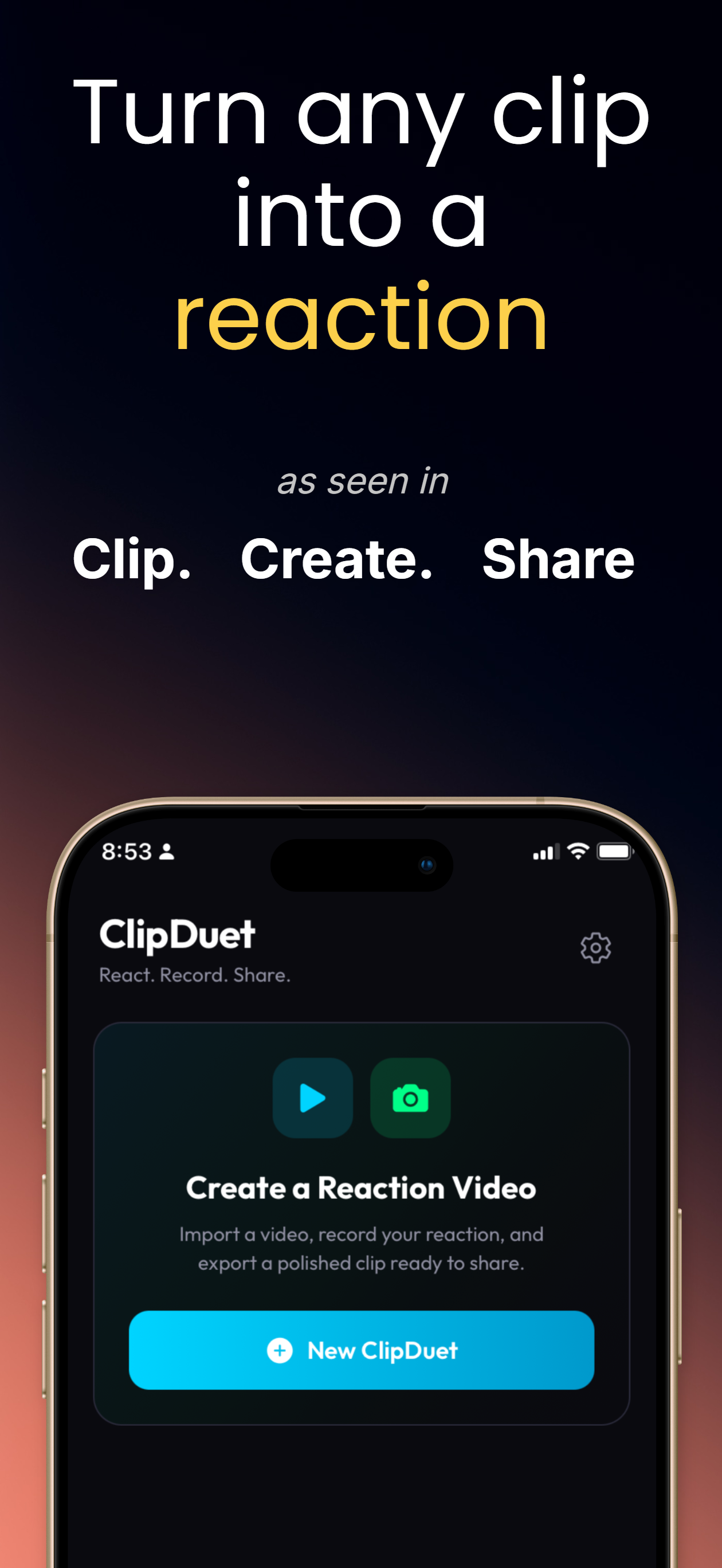
ClipDuet is an iPhone workflow for reacting over saved video. Pick the source, choose where your facecam lives, record, then send the finished vertical MP4 to your camera roll or another app.
The recording idea
The source and your facecam belong to one guided project. You can choose from six layouts, use small, medium, or large facecam sizing, and drag the facecam on the preview when you want a more personal placement.
When another editor fits better
Use ClipDuet when the story is your live reaction to one source. A full timeline editor is the better choice when you need multi-clip storytelling, layered graphics, detailed color work, or frame-by-frame restructuring.
A repeatable take
Choose the background first, then frame your facecam before pressing record. The workflow keeps the source and your camera in one project, so you are not manually aligning two recordings later. It is a good fit for a single clip and a live point of view; it is not a replacement for a timeline when you need several source clips or detailed keyframes.
How to do it in ClipDuet
- Start a new ClipDuet and select Video.
- Choose a facecam layout and size, then adjust placement in preview.
- Record your reaction; control source audio or pause the source if you need room to talk.
- Choose Full Video or Highlights, then export when ready.
Frequently asked questions
Can I make a reaction video entirely on iPhone?
Yes. ClipDuet is built for iPhone and lets you pick a saved video, record facecam over it, and export a vertical MP4.
Does ClipDuet replace a full video editor?
Not for every job. It focuses on a single source plus a live facecam reaction; a timeline editor is better for complex multi-clip edits.
Can I use a saved video from my iPhone?
Yes. Start a new ClipDuet and choose a video from the iPhone media picker, then continue to layout and recording.
Can I make a reaction over several unrelated clips?
ClipDuet is designed around one source background per project. Use a full timeline editor when the story depends on assembling many unrelated clips.