
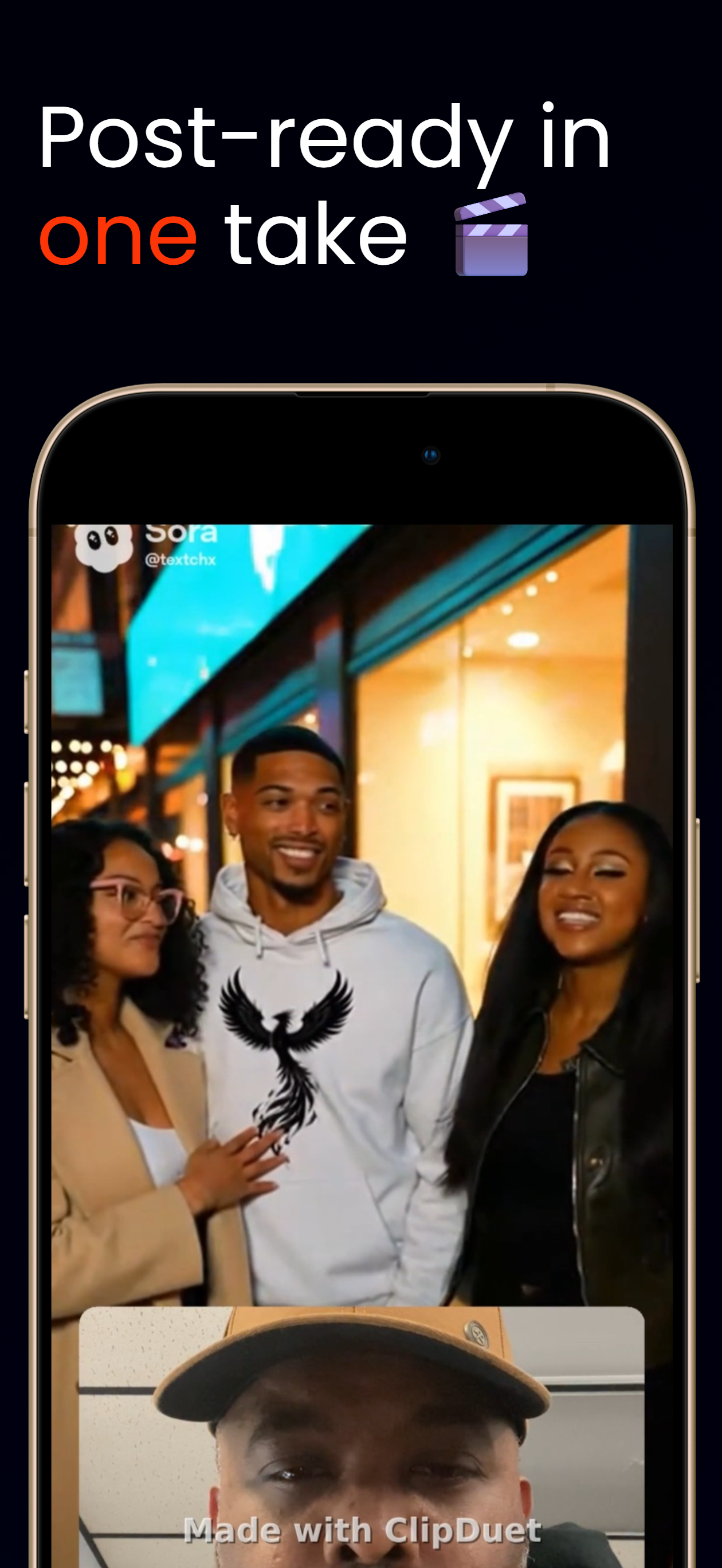
Choose the cut
Quick Polish lets you select Full Video or Highlights. You can trim the start and end, review pause marks, reposition facecam, and choose Fit, Fill, or Focus before exporting.
The file you receive
ClipDuet exports a vertical 9:16 MP4. When rendering completes, save it to your camera roll or share it to another app.
You can step away
Exports are rendered on ClipDuet servers. You can leave the export screen and check the project later; ClipDuet does not send a completion notification, so return to the project to see its status.
What happens after you tap export
The source and facecam media are uploaded for server rendering rather than finished entirely on the phone. Longer output—including pause-stretched output—can take more processing time. You can leave the screen and later reopen the project, but there is no completion notification. When it is done, save the MP4 to your camera roll or use the share action.
How to do it in ClipDuet
- Open Quick Polish after recording.
- Choose Full Video or Highlights and make final trim/layout decisions.
- Tap export and let the project render.
- Return to the project later if you leave the export screen; save or share when ready.
Frequently asked questions
What format does ClipDuet export?
ClipDuet exports a polished vertical 9:16 MP4.
Will I get a notification when export finishes?
No. You can leave and check the project later, but there is no completion notification.
Does leaving the export screen cancel the render?
No. You can leave and check the project later. Reopen the project to inspect progress because ClipDuet does not send a completion notification.
Can I share without saving first?
When the export is ready, ClipDuet offers save and share actions for the finished vertical MP4.
Can I export a landscape file?
ClipDuet's guided export is a vertical 9:16 MP4. A different delivery canvas is a reason to use a full editor.