First, check the project
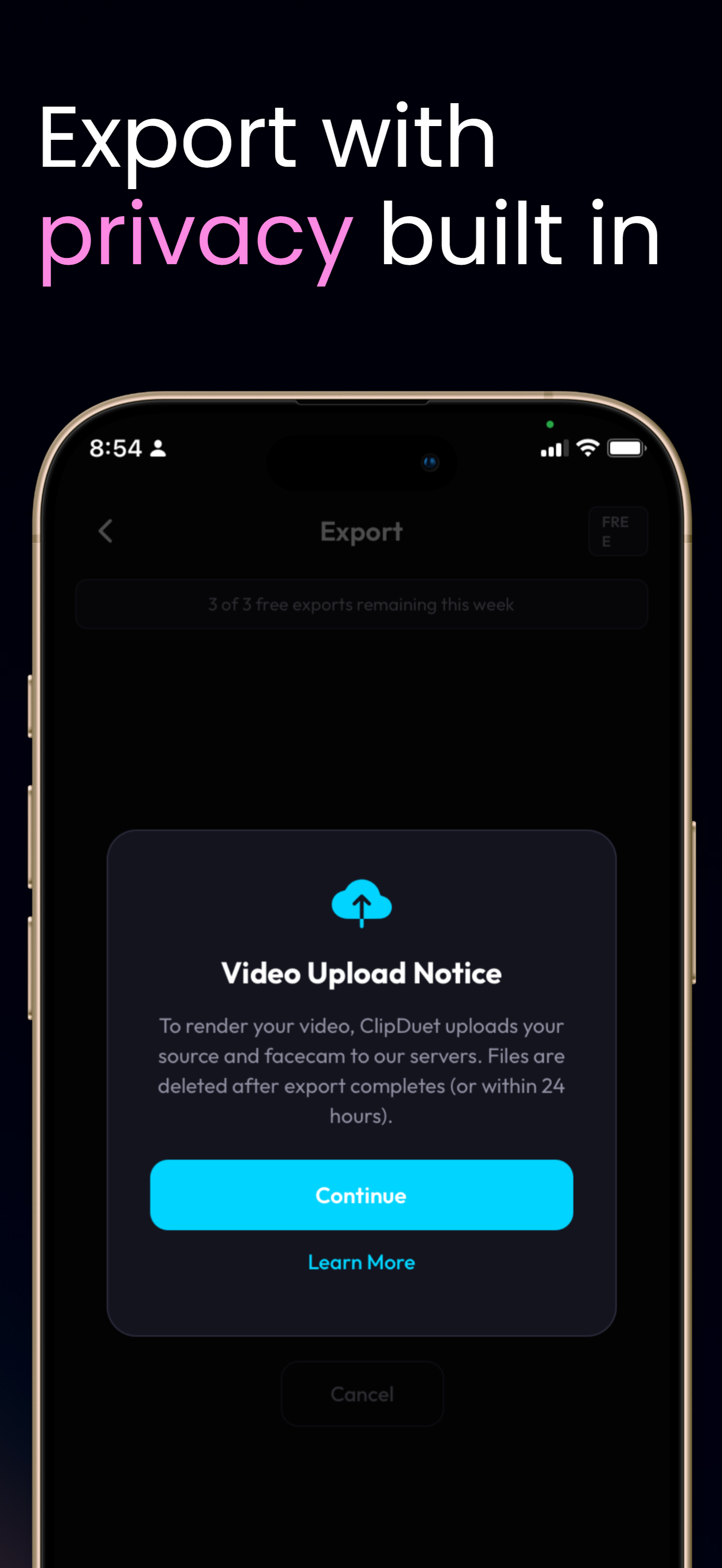
Rendering happens on ClipDuet servers. If you leave the export screen, open the project again to check progress; completion is not delivered as a notification.
Check the project limits
Free exports allow video projects up to five minutes at 30fps with a watermark. Pro supports projects up to 30 minutes, optional 60fps, and no watermark.
If audio is not behaving as expected
For Duck, try a headset microphone. Speaker bleed into the native iPhone mic can mask facecam audio and make the automatic source-audio reduction less reliable.
Still stuck?
Use the support page to email ClipDuet with what happened and the project state you see. Avoid deleting a project you still want to inspect.
A careful troubleshooting order
Confirm camera and microphone permissions, enough device storage for the temporary recording, and a stable network for upload. Then check the source duration plus any pause-stretched time against your plan limit. If rendering is already active, preserve the project and reopen it later rather than repeatedly starting new exports.
Frequently asked questions
Can I close the export screen while ClipDuet renders?
Yes. Leave the export screen and check the project later.
What should I do if Duck does not seem clear?
Try a headset microphone, since iPhone speaker bleed into the native mic can mask your voice.
What permissions should I check first?
Check iPhone camera and microphone permissions for ClipDuet, then verify the selected media is accessible in Photos.
Can a weak network affect export?
Yes. Source and facecam media upload for server rendering, so an unstable connection can interrupt or delay the export.
Should I delete a stuck project?
No. Preserve the project while checking its status and contact Support with the project state if it remains unresolved.
Can pauses make an otherwise valid project too long?
Yes. Pause time is included in output duration, so trim or reduce pauses when the final estimate reaches the Free or Pro limit.